Visit Reports
Visit reports organize information about meetings and contacts entered through Visits.
Access Visit Reports
To access from the Button Bar, go to Reports/Exports > Visits.

Filter Visits
Options
-
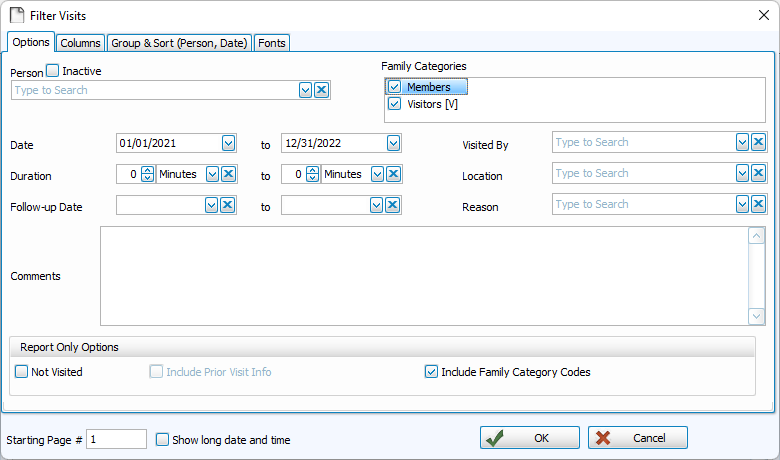
In the Options tab, you can narrow down the people included in your report. Only visits matching the criteria on the options tab will be included in the report.
-
Under Report Only Options, you can opt to run a report for those who do not have visits. You also can choose to show Category Codes such as [V] for Visitors.
Columns
-
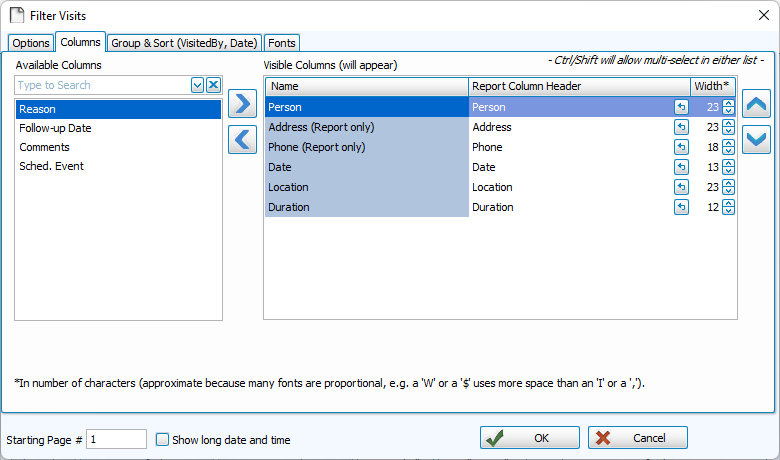
Move columns you want to include to the right, and columns you want to exclude to the left.
-
Use the
 and
and  or double click to move a column to the opposite side.
 -
To select multiple columns at once
-
Click + CTRL - Selects multiple lines in any order
-
Click + SHIFT - Selects a range of lines in row
-
-
Use the
 and
and  to change the order of the columns from left to right.
 -
Determine the width of a column by character count. Change or abbreviate how a column is titled by editing Report Column Header.
-
Columns that appear in bold are Detail Report Columns and include additional information indented under a subheading.
Group & Sort
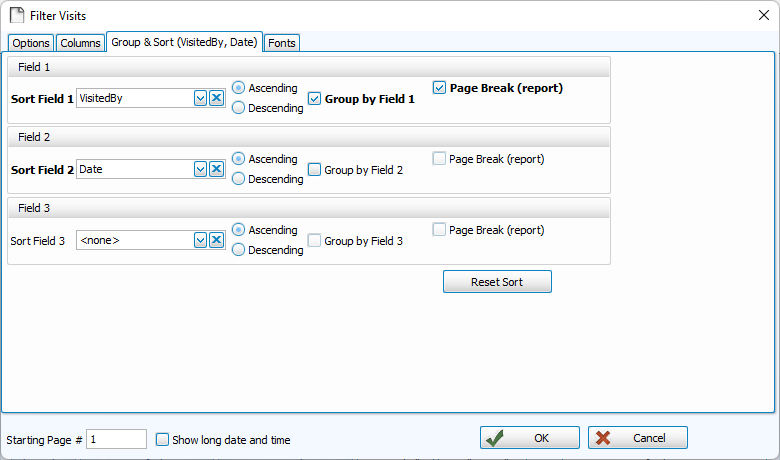
Sort fields allow you to order information. The first takes priority, when those are all the same, the program will sort within that section by the selection in the second, and then the third.
-
Sort in Ascending (A-Z, 0-9) or Descending (Z-A, 9-0) order.
-
Click
 to restore defaults.
Fonts
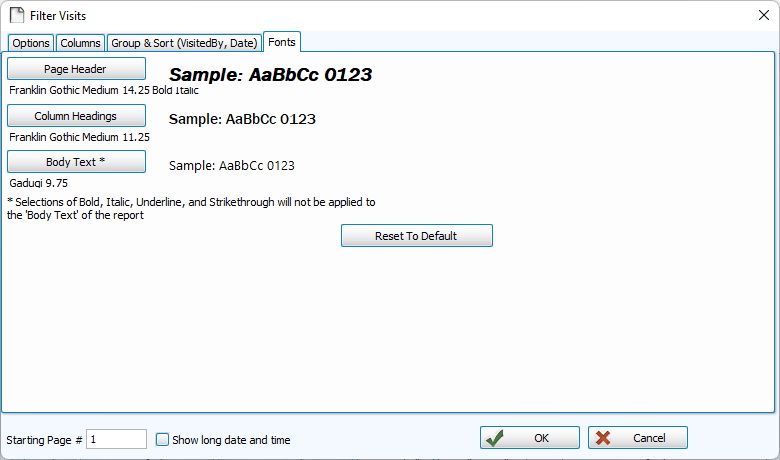
-
The Fonts tab is where you can control the typography of your report.
-
Click
 to restore the default 9.75 Times New Roman.
Print and Export
Once you've set up your Visits Report, you can Print or Exports from the Print Preview.